Your phone buzzes during a movie, a nap, or a big meeting. That’s annoying. DND meaning on iPhone solves this exact problem — it’s Apple’s built-in way to silence your phone without missing what truly matters. This guide breaks down what DND really does and gives you 7 tips to use it like a pro.
Table of Contents
What Does DND Mean on iPhone?
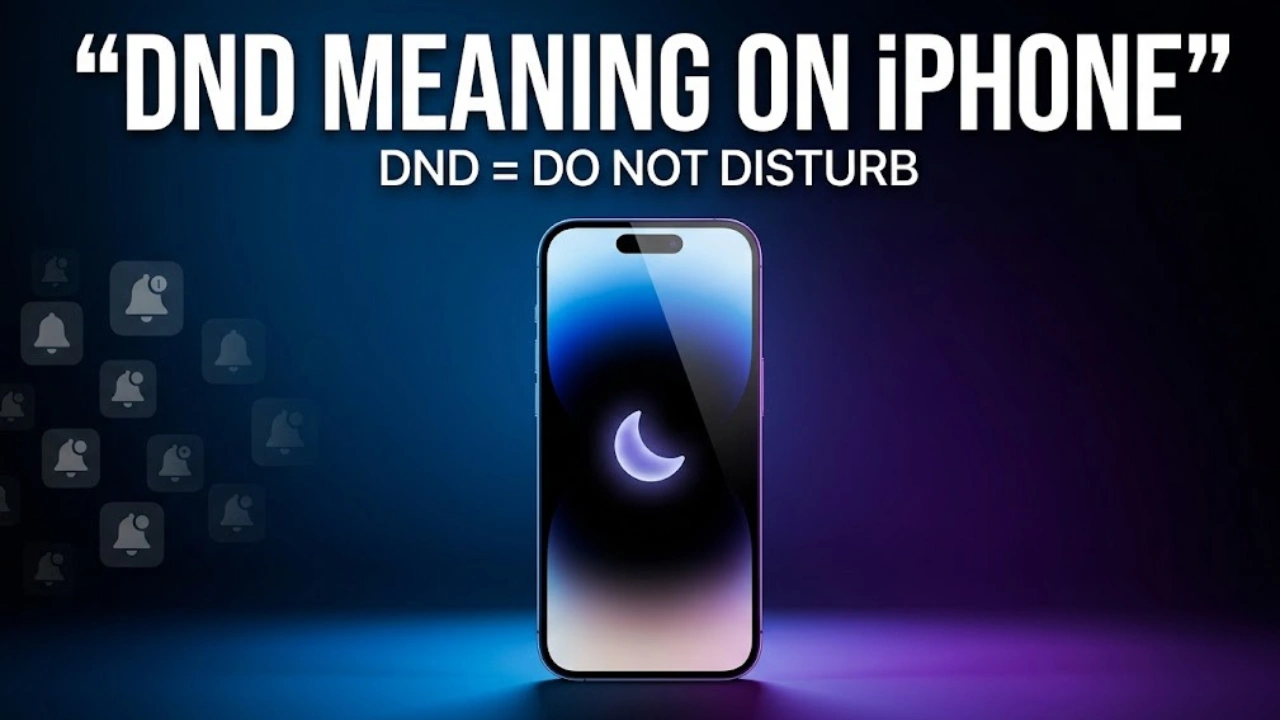
DND stands for “Do Not Disturb.” It’s a setting built into every iPhone that silences calls, alerts, and notifications the moment you turn it on.
Since iOS 15, Apple folded DND into a bigger system called Focus. Think of Focus as the umbrella, and DND as one option under it — alongside Work, Personal, Sleep, and Driving modes. When DND is active, a small crescent moon icon shows up in your status bar and on your Lock Screen, so you always know it’s on.
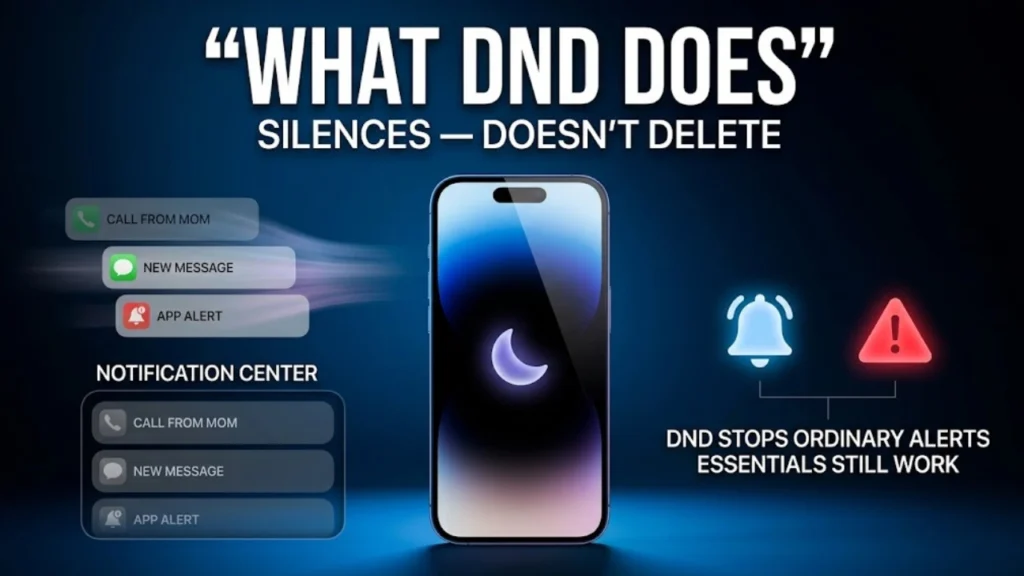
Here’s the simple answer: DND on iPhone silences incoming calls, texts, and app alerts so your screen stays dark and your phone stays quiet. Nothing gets deleted. Everything still arrives — it just waits for you in Notification Center instead of interrupting your day.
What Happens When Your iPhone Is in Do Not Disturb Mode
Turning on Do Not Disturb doesn’t shut your phone off. It just changes how your phone behaves.
Silenced is not the same as blocked. This trips up a lot of people. When DND is on, calls, texts, and app notifications still land on your phone. They just won’t make a sound, buzz, or light up your screen. You’ll find them waiting quietly the next time you check your phone.
A few things still break through, no matter what. Alarms and timers set in the Clock app always sound. Emergency alerts, like AMBER Alerts and government warnings, also get through, since Apple treats these as safety-critical. If you’ve set up Repeated Calls, a second call from the same number within three minutes will ring too — a small safety net for real emergencies.
Screen state matters here. On many iPhone setups, DND’s silencing effect is strongest while your phone is locked. Once you pick up your phone and unlock it, some Focus settings ease up automatically, depending on how you’ve configured things in Settings > Focus.
How to Turn On DND on iPhone — 7 Powerful Tips
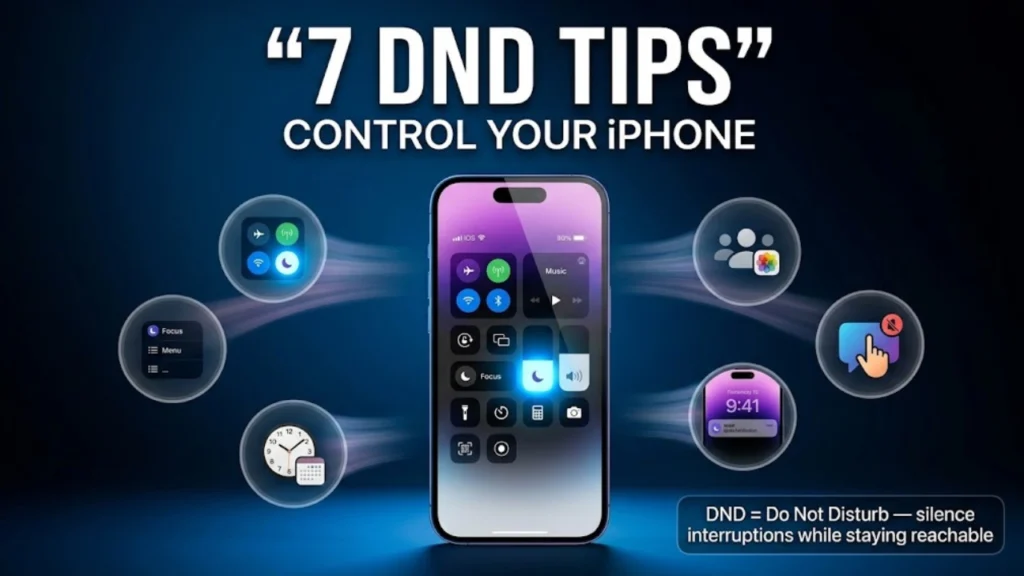
Turning on Do Not Disturb takes seconds, but a few smart tweaks make it far more useful. Here are 7 tips worth knowing.
Tip 1: Turn It On or Off via Control Center Swipe down from the top-right corner of your screen (or up from the bottom on older iPhones) to open Control Center. Tap the moon icon on the Focus button. One tap turns DND on; another tap turns it off. This is the fastest method Apple’s own support documentation recommends for quick toggling.
Tip 2: Use the Focus Menu for Faster Switching Instead of a single tap, press and hold the Focus button in Control Center. This opens a menu showing every Focus mode you’ve set up — DND, Sleep, Work, and more — so you can jump between them instantly instead of digging through Settings.
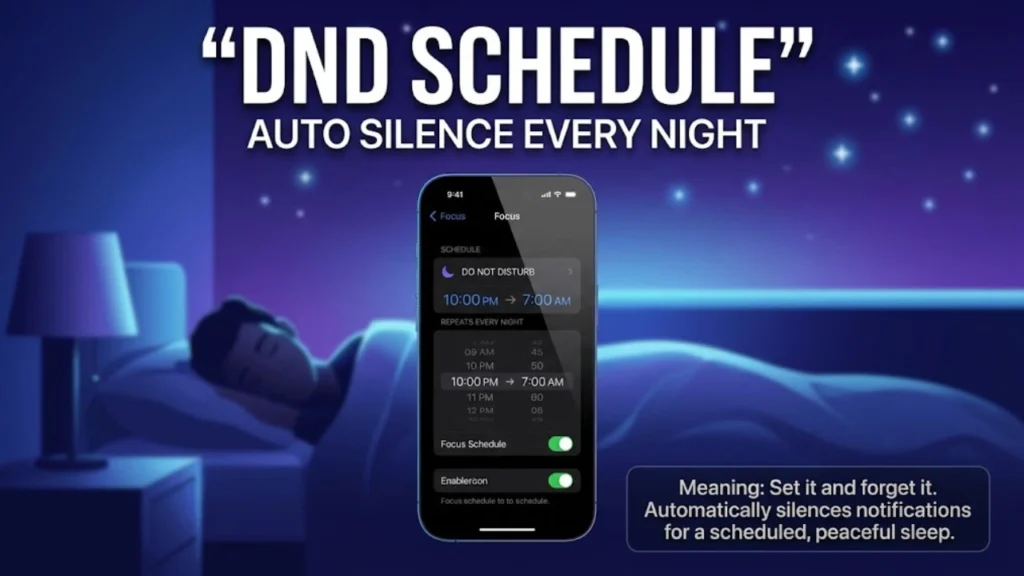
Tip 3: Set a Custom DND Schedule Go to Settings > Focus > Do Not Disturb > Set a Schedule. Pick a start and end time, like 10 p.m. to 7 a.m., and your iPhone will handle the rest automatically every night. This is the single most useful trick for protecting sleep, and it removes the need to remember to toggle DND manually.
Tip 4: Allow Priority Contacts Through Emergency Bypass Worried you’ll miss an urgent call from a parent or partner? Mark them as a Favorite in your Contacts app, then enable Favorites under your DND settings. Their calls and texts will bypass DND completely, so you stay reachable to the people who matter most, even during quiet hours.
Tip 5: Use Focus Filters to Control Individual AppsFocus Filters, available in newer iOS versions, let you decide exactly how apps like Messages, Mail, or Calendar behave during DND. For example, you could hide work emails during a Personal Focus while still seeing them during Work hours. This level of app-by-app control goes far beyond a simple on/off switch.
Tip 6: Link DND to a Specific Lock Screen Since iOS 16, you can connect a custom Lock Screen wallpaper directly to DND. Swipe through your Lock Screen gallery, find or create one linked to Do Not Disturb, and switching to that wallpaper turns DND on automatically. It’s a visual, one-swipe shortcut that also reminds you at a glance that quiet mode is active.
Tip 7: Try Intelligent Breakthrough & Silencing On iPhone 15 Pro, iPhone 16 and later models, and supported iPads, Apple Intelligence powers a feature called Intelligent Breakthrough & Silencing. It reads the content of your notifications and decides which ones are actually urgent enough to interrupt you, silencing the rest automatically. It’s the newest and smartest layer Apple has added to Do Not Disturb yet.
DND vs. Focus Mode vs. Silent Mode: What’s the Real Difference?
These three terms get mixed up constantly, so here’s a clear breakdown.
Silent Mode only mutes sound. Your phone can still light up, vibrate, and show banners — it just won’t ring out loud. Flip the physical switch on the side of your iPhone, and that’s Silent Mode.
Do Not Disturb goes further. It silences sound and stops your screen from lighting up for incoming calls, texts, and notifications, whether your phone is on the table or in your pocket.
Focus is the broader system that DND lives inside. Focus modes are contextual — Work Focus might hide social apps while showing work chats, and Sleep Focus might dim your Lock Screen to grayscale. DND is essentially the “silence almost everything” version of a Focus mode.
Common DND Problems on iPhone & How to Fix Them
Even a simple feature runs into hiccups sometimes. Here are the most common ones.
DND won’t turn off. This usually means a schedule or Smart Activation is still running in the background. Head to Settings > Focus > Do Not Disturb, and check “Set a Schedule” for anything still switched on.
You’re missing calls you expected. Double-check your Allow Notifications list under DND settings. If a contact isn’t marked as a Favorite or manually allowed, their calls will stay silent.
DND isn’t syncing across your devices. If you use an iPhone, iPad, and Mac together, make sure Share Across Devices is turned on in Focus settings. Without it, turning DND on for one device won’t carry over to the rest.
FAQ’s
What happens when an iPhone is in Do Not Disturb?
Your iPhone stays silent for incoming calls, texts, and app notifications. Nothing rings, buzzes, or lights up the screen. Everything still arrives quietly in the background, and alarms, timers, and emergency alerts still sound normally.
Is it better to have Do Not Disturb on or off?
It depends entirely on the moment. DND is helpful during sleep, meetings, driving, or focused work, since it cuts distractions and protects your attention. Leaving it off makes more sense when you need to stay fully reachable, such as during work hours or while expecting an important call.
What happens when someone calls you in Do Not Disturb mode?
The call comes through silently — your phone won’t ring or vibrate, and the caller hears normal ringing on their end. The call shows up in your Notification Center and Recents list so you can call back later. If they call again within three minutes and Repeated Calls is enabled, the second call will ring through.
What happens if I turn off Do Not Disturb?
Your iPhone immediately goes back to normal. Calls will ring, texts will buzz, and app notifications will light up your screen exactly like before. Any DND schedule you’ve set will still trigger automatically the next time it’s due, unless you also turn the schedule off.
Conclusion
DND on iPhone is a small setting with a big payoff: fewer interruptions, better sleep, and full control over who reaches you and when. Try setting a schedule tonight, and let your iPhone do the quiet work for you.
Jack Waseem is the founder and lead editor of MeaningsLoop. He started the site out of a simple frustration: too many word-meaning searches online led to cluttered pages, thin definitions, and content clearly written for search engines rather than for people. Jack set out to build something closer to a well-kept paper dictionary — dependable, clearly written, and genuinely useful.